 LaunchMon
LAUNCHD FIELD NOTES
“Background Items Added”: what the notification means and how to remove the item
macOS shows it when a LaunchAgent, LaunchDaemon or login item is registered. Find the file behind the name with sfltool dumpbtm, then switch it off in Login Items or remove it with launchctl bootout.
The notification reads “Background Items Added: ‘Example’ added items that can run in the background. You can manage this in the Login Items settings.” On macOS 13 it says “Software from ‘Example’ added items…”. Sometimes the name is an app you just installed. Sometimes it is a developer name you don’t recognize, or just zsh or python3, and System Settings won’t tell you which file it is talking about.
Start in Terminal
The list behind the Login Items pane is the Background Task Management database. sfltool prints it, including the path to the plist or app that registered each item.
sudo sfltool dumpbtm > /tmp/btm.txt
grep -nE 'Name:|Developer Name:|Type:|Disposition:|URL:|Executable Path:' /tmp/btm.txt
ls -la ~/Library/LaunchAgents /Library/LaunchAgents /Library/LaunchDaemons
launchctl print "gui/$(id -u)/local.example"
launchctl bootout "gui/$(id -u)/local.example"
What to check next
In the dump, find the entry whose Name or Developer Name matches the notification. Name is the executable’s file name, which is why a script shows up as zsh or python3; Executable Path is the full path to it, and URL is the plist or app bundle that registered it. Identifier is a number followed by the plist’s Label. Type tells you whether it is an agent (runs as you, from ~/Library/LaunchAgents or /Library/LaunchAgents), a daemon (runs as root from /Library/LaunchDaemons) or a login item embedded in an app; plist-based ones are marked legacy. Disposition shows whether it is currently enabled and whether you have been notified. Some macOS versions print the dump without sudo, and the field names vary a little between versions, so if a grep comes back empty, open the whole file.
Then decide what to do with it. Switching the item off in System Settings, General, Login Items (Login Items & Extensions on macOS 15) stops launchd from loading it but leaves the files where they are, and an app update can register it again. To remove a job you don’t want, run launchctl bootout with its Label, which is the Label key inside the plist (the dump’s Identifier without its number prefix), then delete the plist. For a daemon use system/<label> with sudo instead of gui/$(id -u). If an app you still use installed it, use that app’s uninstaller or its own settings first; deleting the plist from under a running app tends to make it reinstall the item.
The notification can also be stale. If Login Items lists things that no longer exist, or an entry you deleted keeps its toggle, sfltool resetbtm clears the database. After a log out and back in macOS rebuilds the list from what is actually on disk and shows the notification again once for every item it finds, which is expected.
Why it happens
Since macOS 13, launchd does not silently load whatever appears in the LaunchAgents and LaunchDaemons folders. Background Task Management watches those folders and the SMAppService registrations that apps make, records each item with the developer who signed it, shows the notification so you know something new will run without you starting it, and gives you the switch in Login Items. Anything that writes a plist there triggers it: installers, Homebrew’s brew services, a script you wrote yourself, and helper tools including LaunchMon’s own.
User agents usually run in gui/<your uid>; system daemons run in system. The same label in different domains refers to different service registrations.
See it in LaunchMon
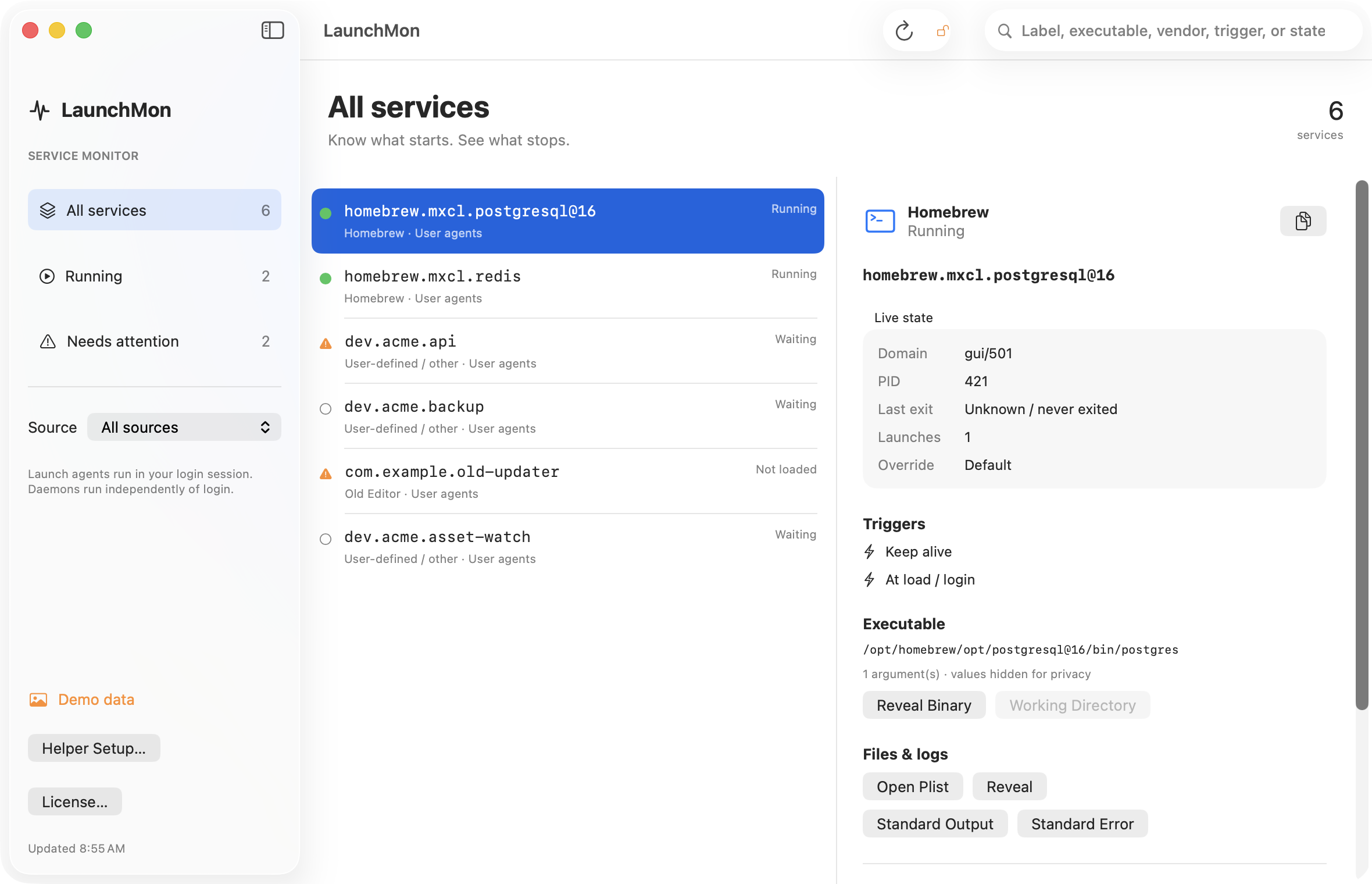
LaunchMon lists every agent and daemon with its plist path, program, triggers and current state, so the name in the notification maps to a file and a command without reading a dump.
Related guides
- How to stop a launch agent on a Mac
- Find launch agents pointing to deleted apps
- How to run a script at login on a Mac with a LaunchAgent
References: Apple: Login Items settings, Apple: creating launchd jobs. For commands on your macOS version, run man launchctl and man launchd.plist.