 LaunchMon
LAUNCHD FIELD NOTES
What is this launch agent? A lookup table for common Mac background items
Most unfamiliar entries in Login Items are updaters and helpers that came with an app you installed. Find the label, look it up below, and remove the app’s helper with the vendor’s own uninstaller rather than by deleting files.
Last checked October 15, 2026. Each row was checked against the vendor’s own documentation or source code, a recognized security reference, or a real install. Labels change between app versions, so trust the Label inside the file on your Mac over this table.
Find the label on your Mac
System Settings, General, Login Items & Extensions (Login Items on macOS 13 and 14) lists background items under Allow in the Background by app or developer name, not by label. To see the labels, list the folders where third-party agents and daemons live, then read the Label key inside each file. The filename usually matches the label, but not always.
ls ~/Library/LaunchAgents /Library/LaunchAgents /Library/LaunchDaemons
plutil -p /Library/LaunchDaemons/com.example.helper.plist
launchctl list | grep -v com.apple
launchctl list shows the agents loaded in your login session, with a PID if running and the last exit status (what the numbers mean). Run it with sudo to list system daemons. Some apps keep their helpers inside the app bundle (Contents/Library/LaunchAgents or LaunchDaemons) instead of these folders; sudo sfltool dumpbtm lists those too, along with the path of each item (how to read the dump). Use the label to find the row below, or link straight to it: this page’s address followed by # and the label with dots replaced by hyphens, such as #com-google-keystone-agent.
Two rules hold for every row. Items whose label starts with com.apple., and anything under /System/Library, belong to macOS: leave them alone. And when an app you still use installed the item, switching it off in Login Items is reversible, while deleting its plist tends to make the app reinstall it on the next launch or update. If you are done with the app, its uninstaller removes the helpers with it.
The table
| Label | Belongs to | What it does | Turn it off? | Remove it properly | Sources |
|---|---|---|---|---|---|
Adobe_Genuine_Software_Integrity_ServiceFile: /Library/LaunchDaemons/com.adobe.agsservice.plist. Login Items shows it as AGSService from Adobe Creative Cloud. | Adobe Genuine Service, installed with Creative Cloud and Acrobat | A system daemon that periodically checks that installed Adobe software is genuine. | Leave it on while any Adobe app is installed. Adobe recommends keeping it, and turning it off can lead to licensing prompts. | Adobe’s Genuine Service uninstall steps. Adobe says it also removes itself once all Adobe apps are uninstalled. | Objective-See DumpBTM sample output, Adobe: uninstall Genuine Service |
com.adobe.ARMDC.SMJobBlessHelperHelper: /Library/PrivilegedHelperTools/com.adobe.ARMDC.SMJobBlessHelper | Adobe Acrobat and Acrobat Reader (Adobe Reader and Acrobat Manager, the updater) | The privileged helper that installs Acrobat and Reader updates as root. | Not recommended. Acrobat still opens, but it stops getting security updates, and PDF readers are a common target. | Acrobat: the Acrobat Uninstaller in Applications. Reader: follow Adobe’s Reader uninstall article; Adobe’s Acrobat Cleaner tool handles failed removals. | Elastic Security detection rule, Adobe: uninstall Acrobat |
com.adobe.ccxprocessFile: ~/Library/LaunchAgents/com.adobe.ccxprocess.plist | Adobe Creative Cloud desktop app | Runs the Creative Cloud Content Manager (CCXProcess) on a schedule, as you, not as root. | Adobe asks that it be allowed to run on schedule. Leave it on while you use Creative Cloud. | Uninstall your Creative Cloud apps, then run Adobe’s Creative Cloud Uninstaller. Adobe advises against dragging the apps to the Trash. | Adobe: CCXProcess OS Scheduler, Adobe: uninstall Creative Cloud |
com.docker.socketFile: /Library/LaunchDaemons/com.docker.socket.plist. Helper: /Library/PrivilegedHelperTools/com.docker.socket | Docker Desktop | A startup task that recreates the /var/run/docker.sock link to your Docker Desktop socket after each restart. | Docker keeps working without it, but tools that expect /var/run/docker.sock stop finding Docker after a reboot. Docker only sets it up when you enable the default Docker socket option, so turn that option off in Docker Desktop’s Settings rather than removing the file. | Docker Desktop, Troubleshoot, Uninstall (or /Applications/Docker.app/Contents/MacOS/uninstall), then move Docker to the Trash. | Docker for Mac issue 7527, Docker: Mac permission requirements, Docker: uninstall |
com.docker.vmnetdFile: /Library/LaunchDaemons/com.docker.vmnetd.plist. Helper: /Library/PrivilegedHelperTools/com.docker.vmnetd | Docker Desktop (Docker documents it for version 4.88 and earlier) | Docker’s privileged helper: binds ports below 1024 for containers and caches the Registry Access Management policy. | Not while you use Docker: containers that publish ports below 1024 can fail. If you no longer use Docker, uninstall it. | Docker Desktop’s uninstaller, as above. Docker also documents removing this helper on its own. | Docker: Mac permission requirements, Docker: uninstall |
com.dropbox.DropboxMacUpdate.agentFile: ~/Library/LaunchAgents/com.dropbox.DropboxMacUpdate.agent.plist | Dropbox desktop app (Dropbox Update) | Checks in the background that Dropbox is up to date; it can run while Dropbox is closed, only to check for updates. | Not recommended. Dropbox staff say removing it can interfere with Dropbox’s ability to update. | Quit Dropbox from the menu bar, then follow Dropbox’s uninstall article. | Dropbox: updating on Mac, Dropbox Community (staff answer), Dropbox: uninstall |
com.google.GoogleUpdater.wakeFile: ~/Library/LaunchAgents/com.google.GoogleUpdater.wake.plist. A Chrome installed for all users has com.google.GoogleUpdater.wake.system in /Library/LaunchDaemons instead. | Google Chrome and other Google apps (GoogleUpdater, the current updater) | Wakes GoogleUpdater once an hour (StartInterval 3600) to check for and install updates. | Not recommended while you use Chrome: Chrome stops getting security updates. | Delete Chrome and any other Google apps. Google’s updater manual says the updater notices within a few hours and removes itself. | Seen on a real install. Chromium: updater user manual, Chromium: wake task source |
com.google.keystone.agentcom.google.keystone.xpcservicecom.google.keystone.daemonAgents in ~/Library/LaunchAgents (or /Library/LaunchAgents); the daemon in /Library/LaunchDaemons. | Google Software Update (Keystone), Chrome’s older updater | On old installs, the agent checks for Google app updates, the XPC service answers update requests, and the daemon updates system-wide installs. After Chrome moves to GoogleUpdater, these files are often empty placeholders with no Label, kept so the old installer does not come back. An empty one runs nothing. | An empty placeholder is harmless; leave it. On an old install without GoogleUpdater, turning these off stops Chrome updates. | Update Chrome so GoogleUpdater takes over, which uninstalls Keystone; or delete the Google apps. | Seen on a real install. Chromium: Keystone migration source, Chromium: updater functional spec |
sh.brew.<formula>homebrew.mxcl.<formula>~/Library/LaunchAgents, or /Library/LaunchDaemons for services started with sudo. | Homebrew, brew services | Runs a Homebrew formula such as postgresql or redis as a background service. Current Homebrew names new services sh.brew.<formula>; older ones are homebrew.mxcl.<formula>, and brew recognizes both. | Usually safe: only that service stops. Use brew, not launchctl, so brew services stays in sync. | brew services stop <formula> (with sudo if you started it with sudo), then brew uninstall <formula> if you no longer need it. When a service says started but is not running. | Homebrew manpage: services, Homebrew source: service.rb |
com.microsoft.autoupdate.helperFile: /Library/LaunchDaemons/com.microsoft.autoupdate.helper.plist. Helper: /Library/PrivilegedHelperTools/com.microsoft.autoupdate.helper | Microsoft AutoUpdate, used by Office, Teams, Edge and Defender | The privileged helper that installs Microsoft app updates. | Not recommended while any Microsoft app is installed: those apps stop getting security updates. Change how often it checks in Microsoft AutoUpdate itself (Help, Check for Updates in any Office app). | Uninstall the Microsoft apps that use it. Microsoft does not document removing AutoUpdate on its own; its troubleshooting article reinstalls it instead. | Microsoft Q&A (Microsoft moderator), Microsoft: troubleshoot AutoUpdate |
com.microsoft.update.agentFile: /Library/LaunchAgents/com.microsoft.update.agent.plist | Microsoft AutoUpdate | The per-user agent that schedules Microsoft app update checks and shows the update prompts. | Same as the helper above: not recommended while you use Microsoft apps. | As above. | Microsoft Q&A (Microsoft moderator), Microsoft Tech Community |
io.tailscale.ipn.macsys.tssentineldInside Tailscale.app: Contents/Library/LaunchDaemons (standalone version, not the App Store one). | Tailscale, on Macs managed by an organization | A root daemon used when the organization’s AlwaysOn policy is set. Its only job is to relaunch Tailscale if it is quit. | It enforces your IT department’s policy; ask them rather than turning it off. Make sure Tailscale is 1.94.0 or newer, which fixes a security issue in this helper. | Tailscale’s uninstall article. On a managed Mac, your administrator removes the policy. | Seen on a real install. Tailscale security bulletin TS-2026-001, Tailscale: uninstall |
org.virtualbox.startupFile: /Library/LaunchDaemons/org.virtualbox.startup.plist, a link into /Library/Application Support/VirtualBox/LaunchDaemons | Oracle VirtualBox | Runs at boot and loads VirtualBox’s kernel extensions (VBoxDrv, VBoxNetFlt, VBoxNetAdp). | Not while VirtualBox is installed: virtual machines and their networking fail to start without it. | VirtualBox_Uninstall.tool from the VirtualBox installer disk image. | VirtualBox source: startup plist, VirtualBox source: uninstaller |
us.zoom.ZoomDaemonHelper: /Library/PrivilegedHelperTools/us.zoom.ZoomDaemon | Zoom Workplace | Zoom’s privileged helper, which runs as root and installs Zoom updates. | Not recommended: Zoom stops updating itself, and Zoom has shipped security fixes for this very updater. | In Zoom Workplace, choose Zoom Workplace, Uninstall Zoom Workplace. It removes the app and all of its components. | Zoom: uninstall, Patrick Wardle, “You’re Muted, Rooted” (DEF CON 30) |
Not listed? Some common labels are left out on purpose because we could not confirm them from the vendor or a real install yet. Suggest a label, ideally with the plist’s Label and path, and we will check it before adding it.
Why it happens
Since macOS 13, Background Task Management records every LaunchAgent, LaunchDaemon and app-registered helper, shows the Background Items Added notification, and gives each one a switch in Login Items. Updaters are the most common case because an app cannot update itself while it is closed, and installing into /Applications needs a helper with more privileges than the app. That is also why so many rows say the same thing: turning the helper off rarely breaks the app today, but it stops the security updates.
User agents usually run in gui/<your uid>; system daemons run in system. The same label in different domains refers to different service registrations.
See it in LaunchMon
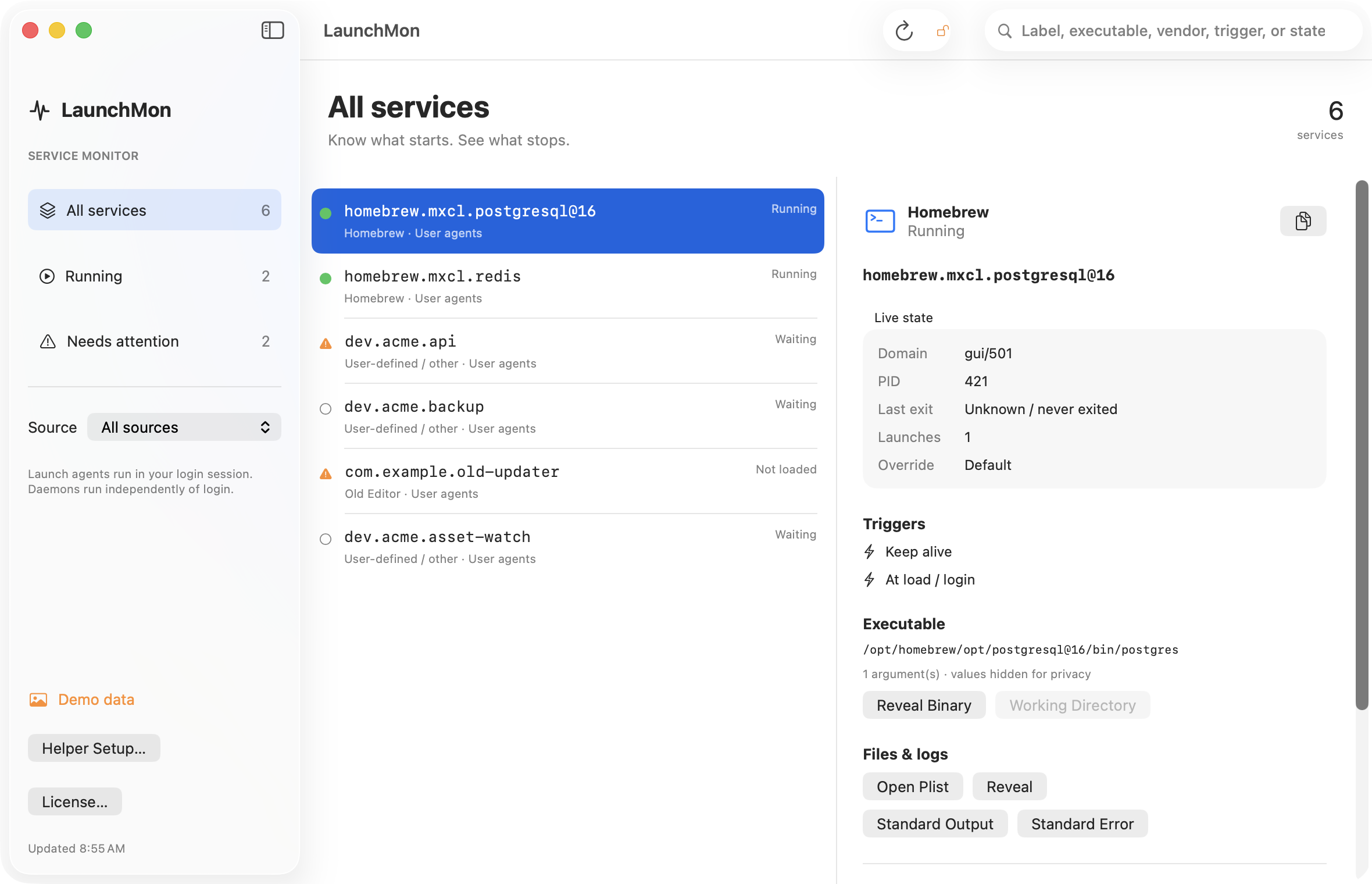
LaunchMon lists every agent and daemon with its label, plist path, program, vendor and current state, so you can search for a label from this table and see at once whether it is installed, running, and which app it belongs to.
Related guides
- “Background Items Added”: what the notification means and how to remove the item
- How to stop a launch agent on a Mac
- Find launch agents pointing to deleted apps
- LaunchAgent vs LaunchDaemon: which one should your job be?
References: Apple: Login Items settings, Apple: creating launchd jobs, plus the sources in each row. For commands on your macOS version, run man launchctl and man launchd.plist.