 LaunchMon
LAUNCHD FIELD NOTES
launchctl “Boot-out failed: 5: Input/output error” (and 3, 1, 150): why bootout fails
Error 5 means launchd has no job with that plist’s Label in that domain. Find the Label that is actually loaded and boot it out by service target; 3, 1 and 150 are the wrong label, missing sudo, and SIP.
You tried to stop something and launchctl refused:
Boot-out failed: 5: Input/output error
Try re-running the command as root for richer errors.
The older command fails the same way with different wording, Unload failed: 5: Input/output error followed by Try running `launchctl bootout` as root for richer errors. Despite the name, nothing is wrong with your disk. Error 5 is launchd’s generic answer when it cannot match what you asked to remove with a job it has loaded. The fix is almost never sudo; it is naming the job the way launchd knows it.
Start in Terminal
These examples use a placeholder label. Substitute the exact Label from your own plist, not its filename. First read the Label out of the plist, then look for it in your login session’s domain:
plutil -extract Label raw ~/Library/LaunchAgents/local.example.plist
launchctl list | grep -i example
launchctl print "gui/$(id -u)/local.example" | grep -E "state|path"
If the job is listed, remove it by its service target instead of by its path. Success prints nothing:
launchctl bootout "gui/$(id -u)/local.example"If launchctl print answers Bad request. and Could not find service "local.example" in domain for user gui: 501, the job is not loaded in your session at all, and there is nothing to boot out there. Check the other domain (below) before assuming it is gone.
What to check next
Read the number, not just the words. On macOS 26, each one comes from a different mistake:
- 5: Input/output error. You passed a plist path, as in launchctl bootout gui/501 ~/Library/LaunchAgents/local.example.plist, and launchd has no loaded job in that domain whose Label matches the file. The usual reasons: the job was never loaded or is already unloaded; you edited the Label (or the file is a copy) after it was loaded, so the file no longer names the running job; the plist has been deleted, so launchctl cannot read a Label from it at all; or it is a LaunchDaemon plist and you aimed it at gui/<uid> instead of system. Booting out by service target sidesteps the first three, because it does not read the file.
- Unload failed: 5 is the same thing from launchctl unload. Watch out: unload still exits with status 0 after printing the error, so a script that checks $? thinks it worked. Run without sudo on a file in /Library/LaunchDaemons, it also prints Warning: Expecting a LaunchAgents path since the command was run as user. Got LaunchDaemons instead.
- 3: No such process. You used a service target and the label is not loaded in that domain: a typo, the filename instead of the Label, a job you already booted out, or the wrong domain. user/501/local.example and gui/501/local.example are different registrations, and agents you load from Terminal live in gui/501.
- 1: Operation not permitted. You targeted the system domain without sudo. Daemons from /Library/LaunchDaemons live in system, and only root can change it: sudo launchctl bootout system/com.vendor.daemon.
- 150: Operation not permitted while System Integrity Protection is engaged. That is how launchctl error 150 decodes it. The job belongs to macOS itself, and System Integrity Protection does not let you unload it. Leave it alone; if it misbehaves, the cause is usually something else on the system.
Any other number can be looked up the same way: launchctl error 5 prints 5: Input/output error, and launchctl error 113 explains the Could not find specified service status that launchctl kill and print exit with when the label is not loaded.
The hint to re-run as root only helps with real system-domain jobs. A LaunchAgent you loaded from Terminal is in gui/<uid>, and sudo launchctl unload on its plist looks in the system domain instead, which is the wrong place.
It stopped, then came back
bootout only removes the job until launchd loads it again. A plist left in ~/Library/LaunchAgents or /Library/LaunchAgents is loaded at your next login, and one in /Library/LaunchDaemons at the next boot. To keep it from loading without deleting anything, disable it as well: launchctl disable "gui/$(id -u)/local.example", which launchctl print-disabled "gui/$(id -u)" then lists as disabled, and launchctl enable reverses. To remove it for good, boot it out and delete the plist. If an app you still use installed it, switch it off in System Settings, General, Login Items & Extensions or in the app’s own settings instead, or the app is likely to put it back.
Why it happens
launchd keys every job by its Label within a domain. bootout with a path is a convenience: launchctl opens the file, reads the Label, and asks the domain to remove that label. When the file and the loaded job disagree, or the domain is wrong, launchd has nothing to remove and reports the error in the least helpful way available. bootout with a service target such as gui/501/local.example skips the file and asks for the job directly, which is why it works on the cases that fail with 5 and why its own failure, 3, is easier to read.
User agents usually run in gui/<your uid>; system daemons run in system. The same label in different domains refers to different service registrations.
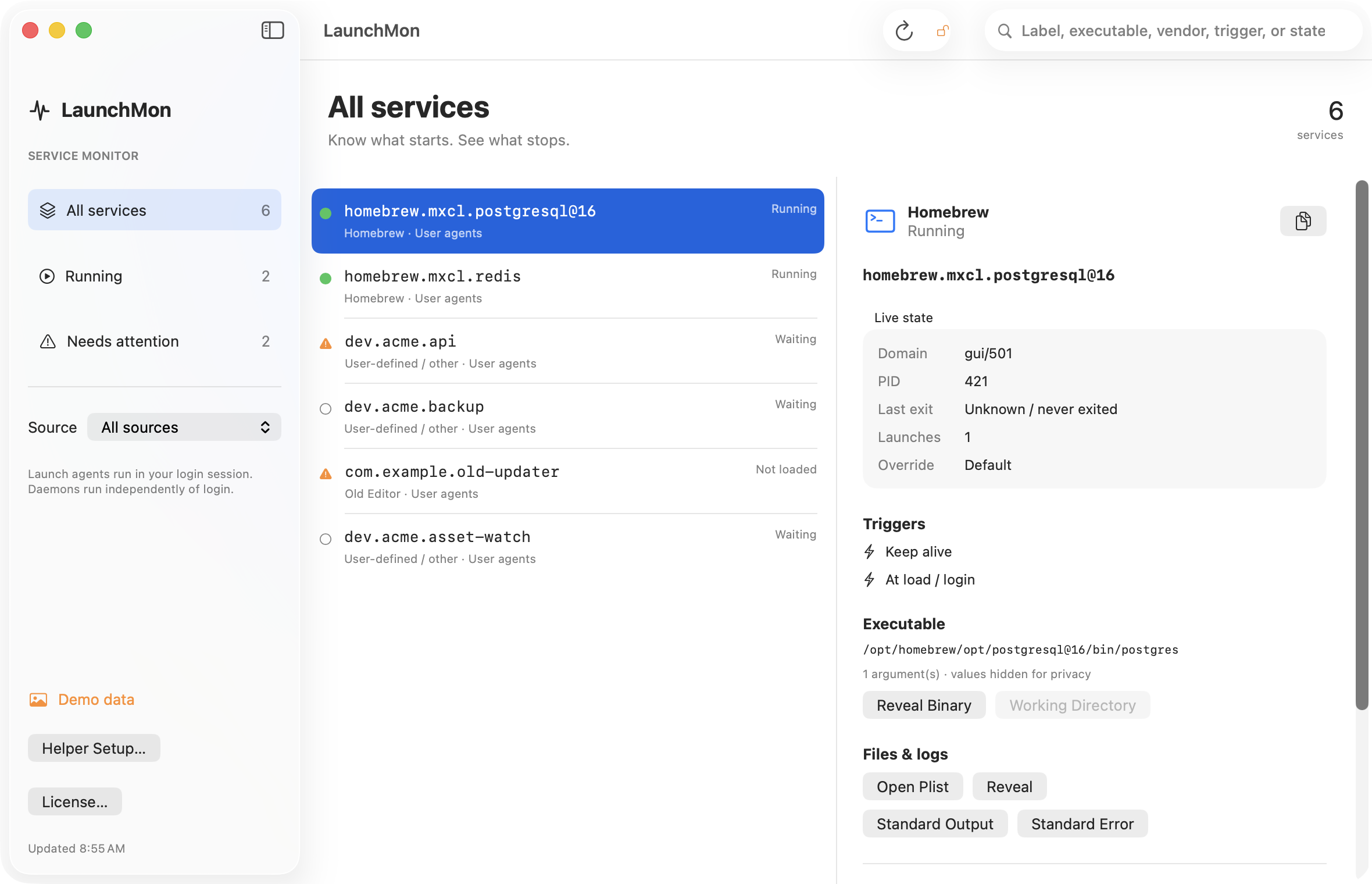
See it in LaunchMon
LaunchMon lists every agent and daemon with its Label, plist path, domain and loaded or running state, so you can see what launchd actually has before you try to remove it, and stop, unload or disable it with an explanation of what each one does and a confirmation first.
Related guides
- How to stop a launch agent on a Mac
- launchctl load vs bootstrap: the old commands and their replacements
- launchctl bootstrap failed: 5 — what to check
- “Background Items Added”: what the notification means and how to remove the item
References: Apple: creating launchd jobs. For commands on your macOS version, run man launchctl and man launchd.plist.