 LaunchMon
LAUNCHD FIELD NOTES
launchctl “Load failed: 119: Service is disabled”: how to enable a disabled launchd service
Error 119 means the service has a persistent disable override in that launchd domain, kept outside the plist. Find it with launchctl print-disabled, clear it with launchctl enable, then bootstrap the job again.
The plist is valid, the executable exists, and launchctl still refuses to load it:
Load failed: 119: Service is disabledbootstrap reports the same number as Bootstrap failed: 119: Service is disabled, and launchctl error 119 decodes it to the same words. Nothing in the file is wrong. launchd keeps a list, per domain, of services that have been switched off, and your Label is on it. Deleting and recreating the plist does not help, because the list is not in the plist.
Start in Terminal
These examples use a placeholder label. Substitute the exact Label from your own plist, not its filename. First confirm the override exists in the domain you are loading into:
plutil -extract Label raw ~/Library/LaunchAgents/local.example.plist
launchctl print-disabled "gui/$(id -u)" | grep -i example
Without the grep, the output is a dictionary of every service in the domain that has an explicit override, one way or the other:
	disabled services = {
		"local.example" => disabled
		"homebrew.mxcl.redis" => enabled
	}
A line that says disabled is your answer. Clear it with enable, then load the job the normal way. Both print nothing on success:
launchctl enable "gui/$(id -u)/local.example"
launchctl bootstrap "gui/$(id -u)" ~/Library/LaunchAgents/local.example.plist
launchctl print "gui/$(id -u)/local.example" | grep -E "state|last exit"
For a LaunchDaemon the list belongs to the system domain. Reading it does not need root; changing it does:
launchctl print-disabled system | grep -i example
sudo launchctl enable system/local.example
sudo launchctl bootstrap system /Library/LaunchDaemons/local.example.plist
What to check next
- The domain. Overrides are per domain. user/501 and gui/501 share one list for your account (on macOS 26, print-disabled shows the same entries for both), and system has its own. enable and disable accept only system, user and gui targets, and a label disabled in system is unaffected by enabling it in gui/501.
- The label. The list is keyed by Label, so a typo, or the filename with .plist on the end, creates a new entry instead of clearing the old one. If you ran disable with a mangled name you will see it in print-disabled next to the one you meant.
- Not listed is not the same as enabled. A service with no entry follows its plist’s Disabled key, which is almost always absent, meaning loadable. An explicit enabled line is what launchctl enable, or the old launchctl load -w, leaves behind. It is harmless.
- Homebrew. brew services start runs bootstrap for you, so the same 119 appears if you once disabled a Homebrew service. Enable gui/$(id -u)/homebrew.mxcl.redis, or system/homebrew.mxcl.redis for a service you started with sudo brew services, and start it again.
- Login Items. The Allow in the Background switches in System Settings are a separate mechanism from this list. An agent can be enabled in launchd and still be held back there; see the guide on the Background Items Added notification below.
Where the list lives: /var/db/com.apple.xpc.launchd/disabled.plist for the system domain and disabled.<uid>.plist for each user. The files are owned by root and meant for launchd alone. Read them if you are curious, but change them with launchctl.
Why it happens
Something, at some point, asked launchd to keep this service off. The usual sources are launchctl disable; the legacy launchctl unload -w, whose -w flag, in the manual’s words, “overrides the Disabled key and sets it to true”; an app’s uninstaller or a device-management agent cleaning up; or a deliberate stop-and-disable that was never reversed. The override persists across reboots, and because launchd stores it rather than the plist, it also survives reinstalling the app or recreating the file. That is why a freshly reinstalled service can fail with 119 on its first load.
Older versions of macOS wrote the Disabled key back into the plist itself. The launchd.plist manual notes that this state is now kept externally, which is precisely what makes it invisible when you read the file. If you want a job to stay off, this is still the right tool: bootout stops it until the next login or boot, disable keeps it from loading at all. To remove it for good, boot it out, then delete the plist.
User agents usually run in gui/<your uid>; system daemons run in system. The same label in different domains refers to different service registrations.
See it in LaunchMon
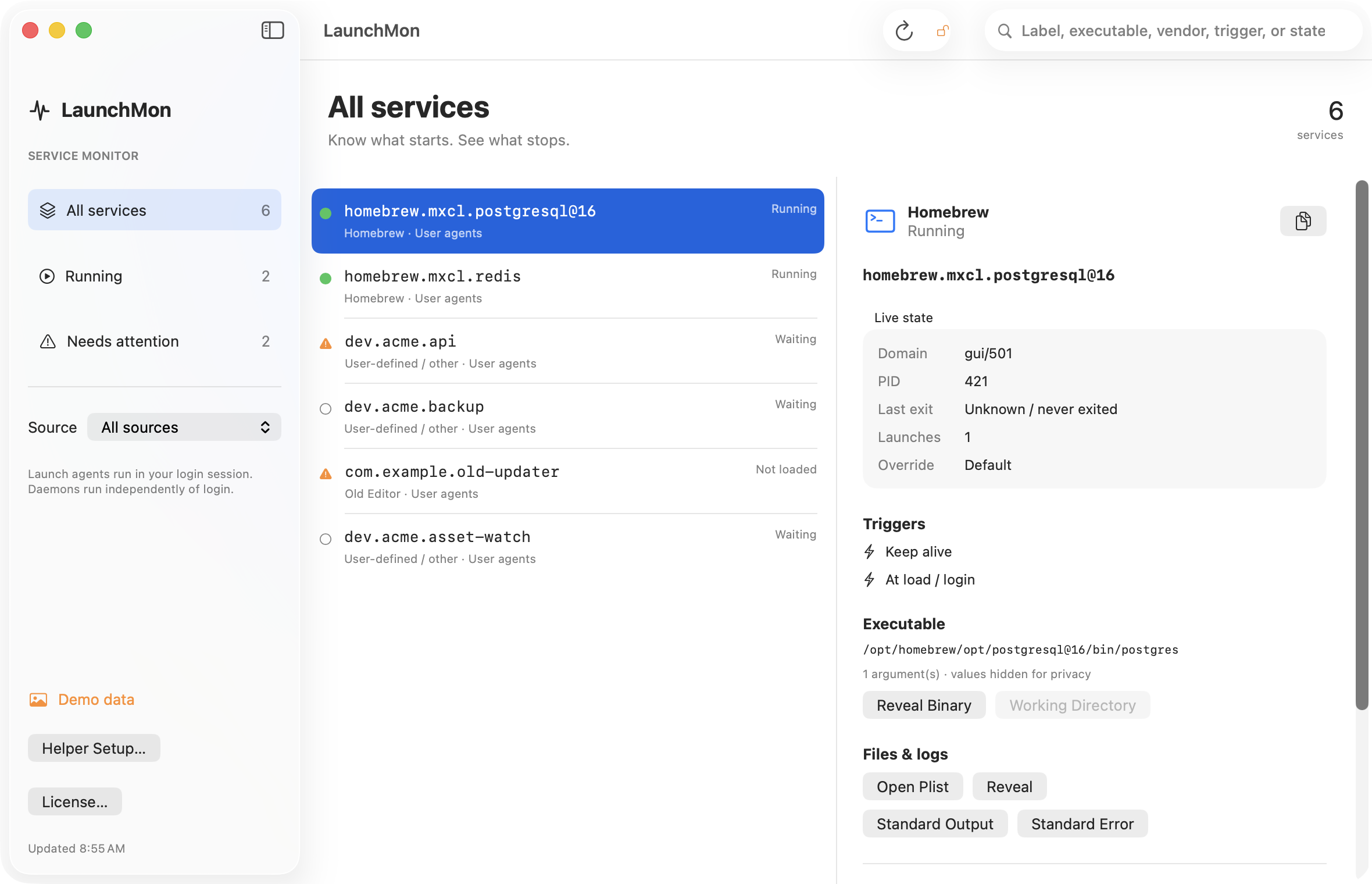
LaunchMon reads print-disabled for each domain and shows the result as the Override row in a job’s live state: Default, Enabled or Disabled. Enable and Disable are actions with a confirmation that says what will change, so a job that will not load has its reason on screen next to its plist and logs.
Related guides
- How to stop a launch agent on a Mac
- launchctl “Boot-out failed: 5: Input/output error” (and 3, 1, 150): why bootout fails
- launchctl bootstrap failed: 5 — what to check
- “Background Items Added”: what the notification means and how to remove the item
References: Apple: creating launchd jobs. For commands on your macOS version, run man launchctl and man launchd.plist.