 LaunchMon
LAUNCHD FIELD NOTES
LaunchAgent says “command not found”: launchd’s PATH and how to fix it
A launchd job starts with PATH=/usr/bin:/bin:/usr/sbin:/sbin and none of your shell setup, so Homebrew tools are not found. Use absolute paths, or set PATH under EnvironmentVariables.
The script works when you run it in Terminal. Under launchd its error log says /bin/sh: brew: command not found, zsh:1: command not found: node or env: node: No such file or directory (from a #!/usr/bin/env node line), and launchctl list shows 127 in the status column. Nothing is wrong with the script: launchd starts it with a much shorter PATH than your shell has.
Start in Terminal
These examples use a placeholder label. Substitute the exact Label from your own plist, not its filename. The first command shows the PATH the job gets and its last exit code; the second prints where your shell finds the tools, which are the paths the job needs.
launchctl print "gui/$(id -u)/local.example" | grep -E "PATH|last exit code"
command -v brew node python3
Then give the job a PATH in its plist, inside the top-level dict:
<key>EnvironmentVariables</key>
<dict>
  <key>PATH</key>
  <string>/opt/homebrew/bin:/opt/homebrew/sbin:/usr/local/bin:/usr/bin:/bin:/usr/sbin:/sbin</string>
</dict>
launchd reads the plist only when the job is loaded, so unload it, load it again and run it once:
plutil -lint ~/Library/LaunchAgents/local.example.plist
launchctl bootout "gui/$(id -u)/local.example"
launchctl bootstrap "gui/$(id -u)" ~/Library/LaunchAgents/local.example.plist
launchctl kickstart "gui/$(id -u)/local.example"
What to check next
On macOS 26, a LaunchAgent with no EnvironmentVariables starts with PATH=/usr/bin:/bin:/usr/sbin:/sbin. launchctl print lists it under default environment. That leaves out /opt/homebrew/bin (Homebrew on Apple Silicon), /usr/local/bin (Homebrew on Intel, and many installers), ~/.local/bin, and every version-manager shim from nvm, pyenv, rbenv or asdf. Any command your script runs from those folders fails with exit status 127, which is the shell saying it could not find the command. If you are not sure which Homebrew prefix you have, brew --prefix prints it.
There are three fixes, from most to least robust. First, write absolute paths: /opt/homebrew/bin/node in the script and in ProgramArguments, not node. Nothing depends on the environment, and the plist shows exactly what runs. Second, set PATH under EnvironmentVariables as above. The value is used literally: launchd does not expand $HOME or ~ there, so a PATH entry for your own bin folder has to be spelled /Users/you/bin. Third, run the script through a login shell, with /bin/zsh and -lc as the first two ProgramArguments. A login zsh reads /etc/zprofile and ~/.zprofile, and ~/.zprofile is where Homebrew’s installer tells you to put its brew shellenv line, so the job gets the same PATH as Terminal. The cost is that the job now depends on your dotfiles and inherits anything slow or interactive in them.
The program itself needs an absolute path no matter what. If the first item in ProgramArguments is a bare name such as brew, launchd looks it up in its default PATH, not in the PATH you set under EnvironmentVariables. A bare ls starts fine, because /bin is in the default PATH. A bare brew does not start at all: launchctl print shows last exit code = 78: EX_CONFIG, and nothing is written to the error log, because no program ever ran.
PATH is not the only difference. The job runs with / as its working directory unless you set WorkingDirectory, so relative paths in the script point at the wrong place. LANG is not set, while a login zsh sets it to C.UTF-8 when it is missing, so a tool that prints non-ASCII text can behave differently under launchd; add LANG to EnvironmentVariables if that matters. HOME, USER, SHELL, TMPDIR and SSH_AUTH_SOCK are set for a LaunchAgent. Variables you export in ~/.zshrc, such as API keys, are not; put them in EnvironmentVariables or have the script read them from a file.
What about launchctl setenv?
launchctl setenv NAME value sets a variable for every process launchd starts afterwards in your login session, which includes apps you open from the Dock as well as your agents. A job that is already loaded gets it the next time it starts; a process that is already running does not. launchctl print shows such variables under inherited environment, and launchctl getenv NAME prints the current value, or nothing if it is not set. On a default setup launchctl getenv PATH prints nothing, because the default PATH is not a setenv variable.
It is the wrong tool for a single job. It is not written to any file, so it is gone after you log out or restart, and the usual workaround, another LaunchAgent that runs setenv at login, can run after the jobs that need it. Setting PATH this way also changes the environment of every app you open afterwards. Old answers that point to /etc/launchd.conf are out of date: current macOS does not read that file. Keep the environment in the job’s own plist.
Why it happens
launchd starts the program directly, without a shell, so none of the files that build your Terminal PATH are read. Terminal opens a login shell: /etc/zprofile runs path_helper, which assembles PATH from /etc/paths and the files in /etc/paths.d (that is where /usr/local/bin comes from), and then ~/.zprofile and ~/.zshrc add Homebrew and everything else. A job that runs /bin/zsh -c or /bin/sh -c gets a non-interactive, non-login shell that skips all of that, which is why wrapping the command in a shell is not enough on its own. Homebrew services avoid the problem because brew services writes the full path of the server binary into the plist it generates.
User agents usually run in gui/<your uid>; system daemons run in system. The same label in different domains refers to different service registrations.
See it in LaunchMon
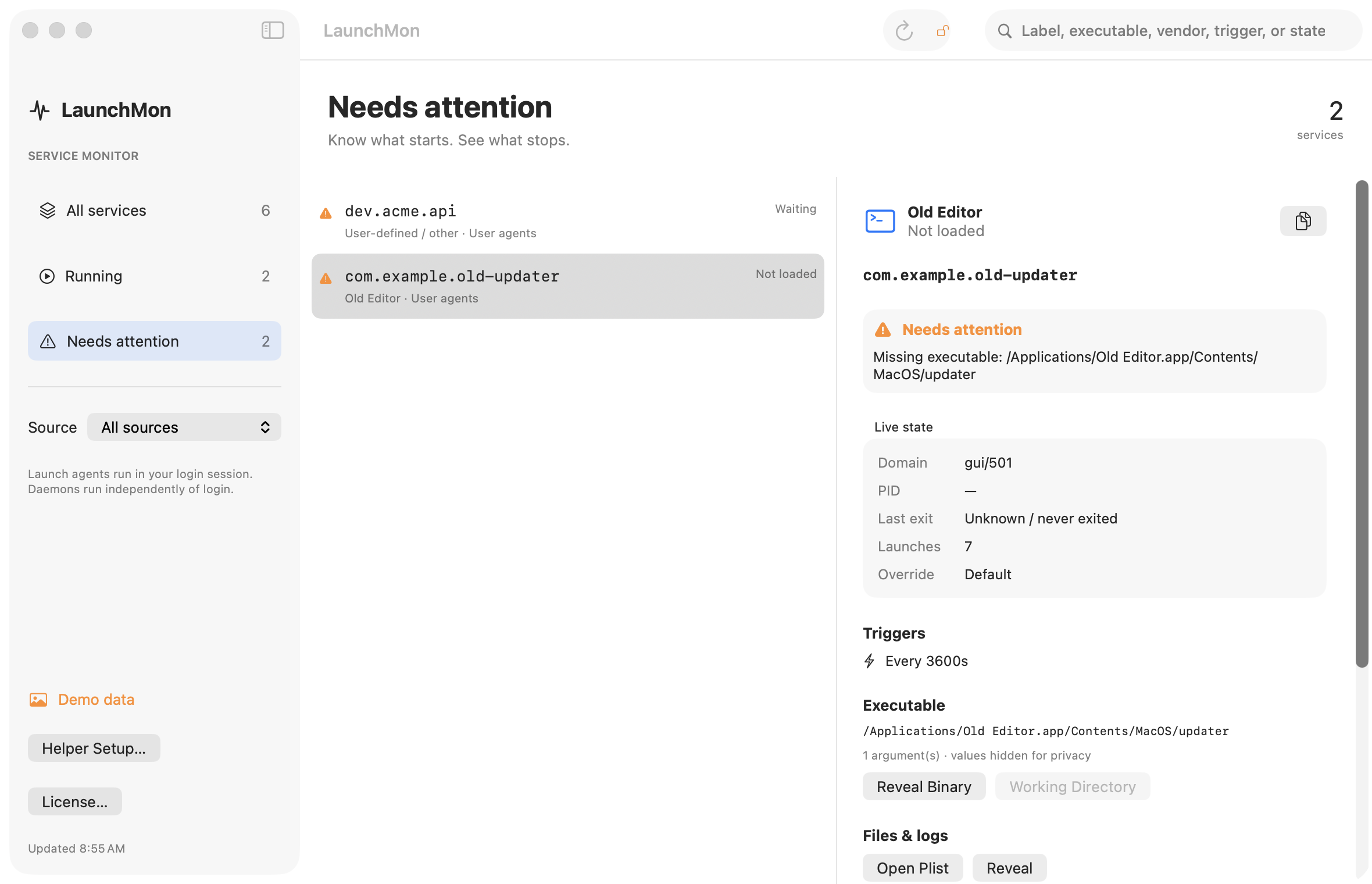
LaunchMon shows each job’s executable, last exit status and launch count next to its plist, and flags a job whose executable path does not exist, so you can check what a job runs without reading launchctl output.
Related guides
- What do the status numbers in launchctl list mean? (0, 78, 127, -9, -15)
- How to run a script at login on a Mac with a LaunchAgent
- How to read launchctl print output: state, last exit code, runs and the rest
- Why isn’t StartCalendarInterval running my script?
References: Apple: creating launchd jobs. For commands on your macOS version, run man launchctl and man launchd.plist.