 LaunchMon
LAUNCHD FIELD NOTES
Run a script when a file or folder changes on a Mac: launchd WatchPaths and QueueDirectories
A LaunchAgent with WatchPaths starts your script when a watched file or folder changes; QueueDirectories runs it while a folder has files in it. A working plist, how to load it, and the gotchas: bursts of starts, no argument saying what changed, the 10-second throttle.
macOS has no cron-style file trigger, but launchd has two keys for the job. WatchPaths starts a job when any listed path is modified. QueueDirectories starts a job whenever a listed directory has something in it, and keeps starting it until the directory is empty. Both go in an ordinary LaunchAgent; nothing else has to run.
Start in Terminal
These examples use a placeholder label. Save this as ~/Library/LaunchAgents/local.watch-notes.plist with your own paths. Every path must be absolute: launchd does not expand ~ or $HOME, and the script gets launchd’s short PATH, not your shell’s.
<?xml version="1.0" encoding="UTF-8"?>
<!DOCTYPE plist PUBLIC "-//Apple//DTD PLIST 1.0//EN" "http://www.apple.com/DTDs/PropertyList-1.0.dtd">
<plist version="1.0">
<dict>
  <key>Label</key><string>local.watch-notes</string>
  <key>ProgramArguments</key>
  <array><string>/Users/you/bin/sync-notes.sh</string></array>
  <key>WatchPaths</key>
  <array><string>/Users/you/Notes</string></array>
  <key>StandardOutPath</key><string>/Users/you/Library/Logs/local.watch-notes.log</string>
  <key>StandardErrorPath</key><string>/Users/you/Library/Logs/local.watch-notes.log</string>
</dict>
</plist>
Check it, load it, and confirm launchd registered the watch. The trigger appears under event triggers as com.apple.launchd.WatchPaths, with the paths you gave:
plutil -lint ~/Library/LaunchAgents/local.watch-notes.plist
chmod +x /Users/you/bin/sync-notes.sh
launchctl bootstrap "gui/$(id -u)" ~/Library/LaunchAgents/local.watch-notes.plist
launchctl print "gui/$(id -u)/local.watch-notes" | grep -A8 "event triggers"
Then change something in the folder and watch the log and the run counter:
touch /Users/you/Notes/test.md
launchctl print "gui/$(id -u)/local.watch-notes" | grep -E "runs =|last exit"
tail -n 20 /Users/you/Library/Logs/local.watch-notes.log
For a drop folder, swap the trigger for QueueDirectories. The script must empty the folder, by processing and deleting the files or moving them elsewhere; if anything is left when it exits, launchd starts it again:
  <key>QueueDirectories</key>
  <array><string>/Users/you/Inbox</string></array>
Apple uses the same pattern itself: the Postfix daemon’s plist queues on /var/spool/postfix/maildrop so that mail dropped there wakes the server.
What to check next
The mechanism is simpler than people expect, and most surprises come from that:
- Your script is not told what changed. launchd passes no arguments and no environment variable naming the path. The script has to find out for itself: compare modification times against a state file, or simply process the whole folder every time.
- One save is several events. Most editors save by writing a temporary file, renaming it over the original, then fixing permissions or extended attributes; Finder and sync clients add .DS_Store and metadata writes. Each one counts as a modification. While your script is running, launchd does not start a second copy; it starts the job once more after it exits if changes arrived meanwhile, so a single save can produce two runs.
- There is no debounce, only a throttle. launchd will not spawn a job more than once every ThrottleInterval seconds, 10 by default. A folder that changes constantly gets delayed, merged runs rather than one per change. If you need a quiet period, sleep at the top of the script, then check that sizes have stopped changing.
- The file may still be being written. The manual says so plainly: when a change is caught, there is no guarantee the file is in a consistent state. A large copy triggers the job on its first bytes. Wait for the size to settle, or have the producer write to a temporary name and rename into place.
- Watching a single file that gets replaced. Save-by-rename swaps the file you named for a new one. On current macOS the watch is served by FSEvents and matched by path (launchctl print shows stream = com.apple.fsevents.matching), so it keeps working, but the manual also warns that modifications can be missed. Watching the parent directory and checking the file inside is more robust than watching the file itself.
- Do not write into the watched path. If the script’s output lands in the folder it watches, every run is a new change and the job loops as fast as the throttle allows. Log elsewhere, as the example does.
- QueueDirectories and hidden files. Empty means no entries at all. A leftover .DS_Store or dotfile keeps the directory non-empty and the job restarting every ten seconds, which looks exactly like a crash loop. Have the script remove or move them too, and check runs in launchctl print if the count climbs on its own.
To test the script without touching the folder, run it under launchd directly with launchctl kickstart -k "gui/$(id -u)/local.watch-notes". If it works there but not from a change, the problem is the trigger; if it fails there too, it is the usual environment and working-directory problems.
Why it happens
WatchPaths and QueueDirectories are triggers, not a file-watching service. launchd registers the paths with the system’s file event monitor, and when it hears about a change it starts the job the same way a StartCalendarInterval would. It does not keep the details, so the job learns only that it was started. The launchd.plist manual goes as far as calling WatchPaths “highly discouraged” for being race-prone. That is a warning about relying on every individual change, not about the pattern: for “re-run this when something in here changes” it is still the simplest built-in tool. When you do need every event with its path and kind, run a watcher such as fswatch, or your own FSEvents program, as a KeepAlive agent instead, and let it decide what to do.
User agents usually run in gui/<your uid>; system daemons run in system. The same label in different domains refers to different service registrations.
See it in LaunchMon
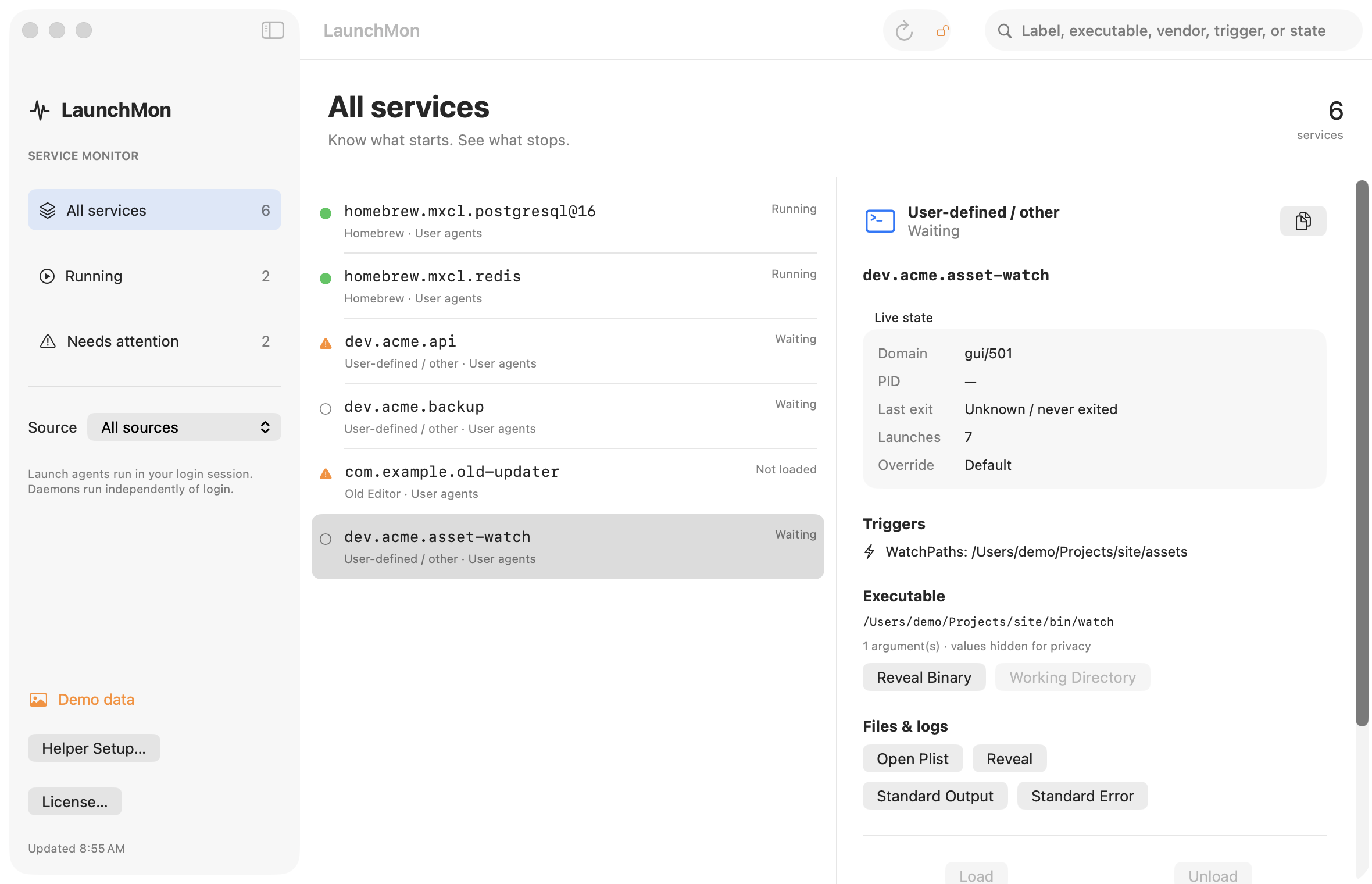
LaunchMon lists each job’s triggers, including the exact WatchPaths and QueueDirectories entries, next to its launch count and last exit, so after a save you can see whether the job started once or several times and what it exited with, and open the plist or the configured log from the same pane.
Related guides
- Why isn’t StartCalendarInterval running my script?
- How to run a script at login on a Mac with a LaunchAgent
- LaunchAgent says “command not found”: launchd’s PATH and how to fix it
- How to read launchctl print output: state, last exit code, runs and the rest
References: Apple: creating launchd jobs. For commands on your macOS version, run man launchctl and man launchd.plist.