 LaunchMon
LAUNCHD FIELD NOTES
LaunchAgent script gets “Operation not permitted”: launchd jobs and Full Disk Access
The script works when you run it in Terminal and fails under launchd, because Desktop, Documents, Downloads, iCloud Drive and external volumes are privacy-protected and Terminal’s permission does not carry over to the job. Move the files out of those folders, or give Full Disk Access to the program launchd actually runs, which is usually the interpreter, not your script.
The job’s error log shows something like one of these:
ls: /Users/you/Documents/reports: Operation not permitted
PermissionError: [Errno 1] Operation not permitted: '/Users/you/Documents/reports'
The wording matters. Operation not permitted is EPERM (errno 1). Ordinary file permissions fail with Permission denied, EACCES (errno 13), and chmod or chown can fix those. Apple’s Developer Technical Support puts it this way: an operation blocked by BSD permissions or ACLs fails with EACCES, and one blocked by something else, such as macOS privacy protection, fails with EPERM. Python reports both as PermissionError, so read the number in brackets. Changing the owner or mode of the folder will not fix EPERM.
Start in Terminal
These examples use a placeholder label. Substitute the exact Label from your own plist, not its filename.
1. Find the program launchd starts. That program is what macOS checks, not the script file:
launchctl print "gui/$(id -u)/local.example" | grep -E "program =|last exit code"
plutil -p ~/Library/LaunchAgents/local.example.plist
launchctl print shows program = , which is the Program key or, if there is none, the first item of ProgramArguments (the launchd.plist manual describes the same rule). For a job written as /bin/zsh followed by the script’s path, the program is /bin/zsh. A script listed on its own runs as the interpreter on its #! line: a script that starts with #!/bin/zsh, run directly, shows up in ps as /bin/zsh, with the script as an argument.
2. Check what Python really is. /usr/bin/python3 is a small stand-in that hands over to the Python from Xcode or the Command Line Tools, and the process that actually touches your files is a different file. Start it the same way and ask ps:
/usr/bin/python3 -c 'import time; time.sleep(5)' & ps -o comm= -p $!On a Mac with Xcode on macOS 27 that printed /Applications/Xcode.app/Contents/Developer/Library/Frameworks/Python3.framework/Versions/3.9/Resources/Python.app/Contents/MacOS/Python, while Python’s own sys.executable reported /Applications/Xcode.app/Contents/Developer/usr/bin/python3. Use what ps prints: here, that Python.app. The same check works for Homebrew, pyenv and conda Pythons, and for #!/usr/bin/env python3, which under launchd’s short PATH finds /usr/bin/python3.
3. Give it Full Disk Access. Open System Settings › Privacy & Security › Full Disk Access, click the Add button, and in the file chooser press ⇧⌘G and type the path from step 1 or 2 (/bin/zsh, /bin/bash, or the Python.app path). Choose it, click Open, and make sure its switch is on. Files & Folders, the other section, only lists apps that have asked for access, in Apple’s wording, so Full Disk Access is the one you can grant by hand.
4. Run the job again. Restart it so a new process starts with the new permission, then read its log:
launchctl kickstart -k "gui/$(id -u)/local.example"-k stops the running instance first, if there is one. If the script finishes cleanly, the last exit code is now 0.
The better fix: keep the job out of protected folders
Granting Full Disk Access to /bin/zsh lets every zsh script on the Mac read everything, not just yours. Apple’s DTS makes the same point: the system cannot tell what an interpreter does on behalf of one script from what it does for another, so the grant covers them all. Often you do not need it:
- Move the script, its working folder and its logs. The launchd.plist manual warns that daemons and agents are subject to the privacy protections, and that naming privacy-sensitive files and folders in the plist (a script in ~/Documents, a WorkingDirectory on the Desktop, a StandardErrorPath in Downloads) may stop the job from running at all. A folder you make yourself at the top of your home folder, such as ~/Scripts, is not on Apple’s list of protected locations.
- Move the data, if you control where it lives. A backup or sync job that reads ~/Projects needs no permission; one that reads ~/Documents does.
- Use a real program instead of a script. Apple’s DTS suggests packaging the script as a standalone program, so the permission belongs to that one program instead of the shared interpreter.
Apple announced on October 2, 2026 that it will add controls so that granting Full Disk Access takes “very explicit user action”. It gave no date or details, so expect the steps in step 3 to change, and prefer the fixes above where they work.
What to check next
- zsh hides the reason. If zsh cannot open the script file itself, it prints can’t open input file with no reason and exits with 127, the code people usually read as “command not found”. bash says the reason and exits with 126. We checked both with an unreadable file on macOS 27. If a 127 comes with that message, look at where the script is stored before you look at PATH.
- Nothing in the log at all. Without StandardOutPath and StandardErrorPath the error goes nowhere you can see. Add both, pointing at a folder that is not protected; Where are my launch agent’s logs? has the details.
- The wrong item was added. Adding Terminal or the script file does not help the job, and /usr/bin/python3 is only the stand-in from step 2, not the program that ends up running. Terminal’s permission covers what runs in Terminal; the job runs without it.
- A LaunchDaemon. Running as root does not get past privacy protection; the manual’s caveat covers daemons as well as agents. Full Disk Access applies to the whole Mac, not to one user, so the steps are the same.
- Still EPERM on a system path. EPERM also comes from System Integrity Protection, which Full Disk Access does not change. If the path is under /System or /usr (except /usr/local), the job should not be writing there.
Why it happens
macOS’s privacy system (TCC: transparency, consent and control) guards Desktop, Documents, Downloads, iCloud Drive, network volumes and removable volumes, plus data that only Full Disk Access unlocks, which Apple describes as including mail, messages and browsing history. It decides by asking which program is responsible for the access. When you run the script in Terminal, Terminal is responsible, and Terminal was allowed long ago, often after a prompt you no longer remember. When launchd runs the same script, the job has no Terminal behind it, so macOS judges the program the job runs, which has never been allowed. Apple’s DTS notes that if the system cannot ask you and has no earlier answer, the access is denied by default. The job carries on and gets EPERM.
User agents usually run in gui/<your uid>; system daemons run in system. The same label in different domains refers to different service registrations.
See it in LaunchMon
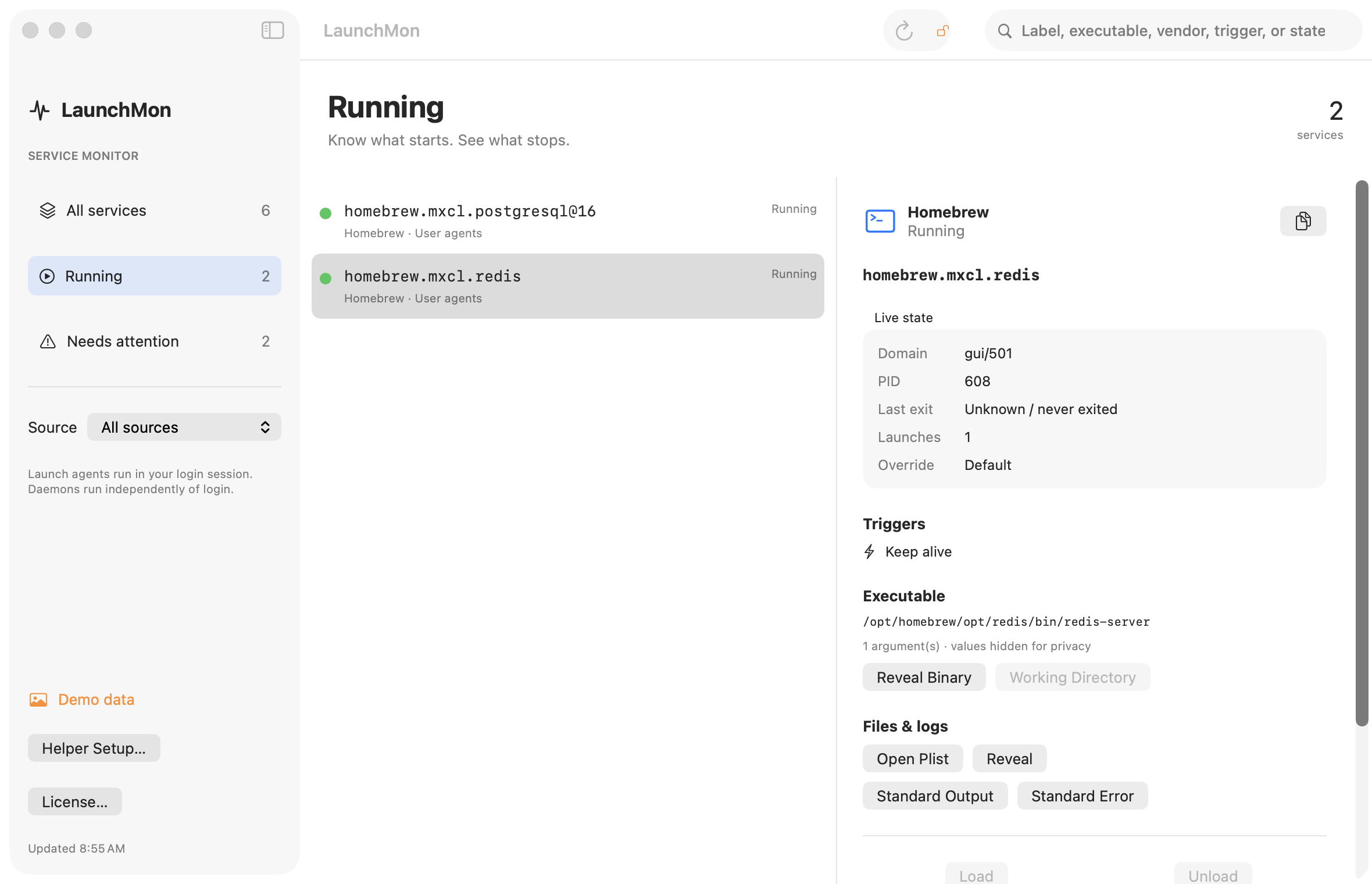
LaunchMon’s Executable row shows the program launchd starts, using the same rule as step 1, and Reveal Binary selects that file in Finder, so you know exactly which file to pick in Full Disk Access. Argument values are hidden for privacy, so use Open Plist to see the script’s path. Standard Error opens the job’s error log when the plist names one, the Live state panel shows the last exit code, and Kick-start runs the job again once the permission is in place. LaunchMon does not read your privacy settings, so it will not tell you a folder is protected; the EPERM in the log is the clue.
Related guides
- LaunchAgent says “command not found”: launchd’s PATH and how to fix it
- Where are my launch agent’s logs?
- What do the status numbers in launchctl list mean? (0, 78, 127, -9, -15)
- LaunchAgent vs LaunchDaemon: which one should your job be?
References: Apple DTS: On File System Permissions, Apple Platform Security: controlling app access to files, Apple: change Privacy & Security settings on Mac, Apple: updates to Full Disk Access in macOS, Apple: creating launchd jobs. For commands on your macOS version, run man launchctl and man launchd.plist.